Blog
Go backHow to Change Email Providers Without Losing Your Digital Life
Zero-Bullshit Guides · June 7th, 2026
Changing email providers is a lot like moving house. Packing the boxes takes a weekend. Updating your address with the bank, the tax office, the dentist and that one magazine you forgot you subscribed to takes the rest of the year.
That second part is why most people never switch. Not because moving mail is hard (it isn't) but because their email address has quietly become the key to everything: banking, shopping, social accounts, the password manager, the phone contract. Change the lock and you'd better know every door it opens.
Here is how to do it without locking yourself out of your own life.
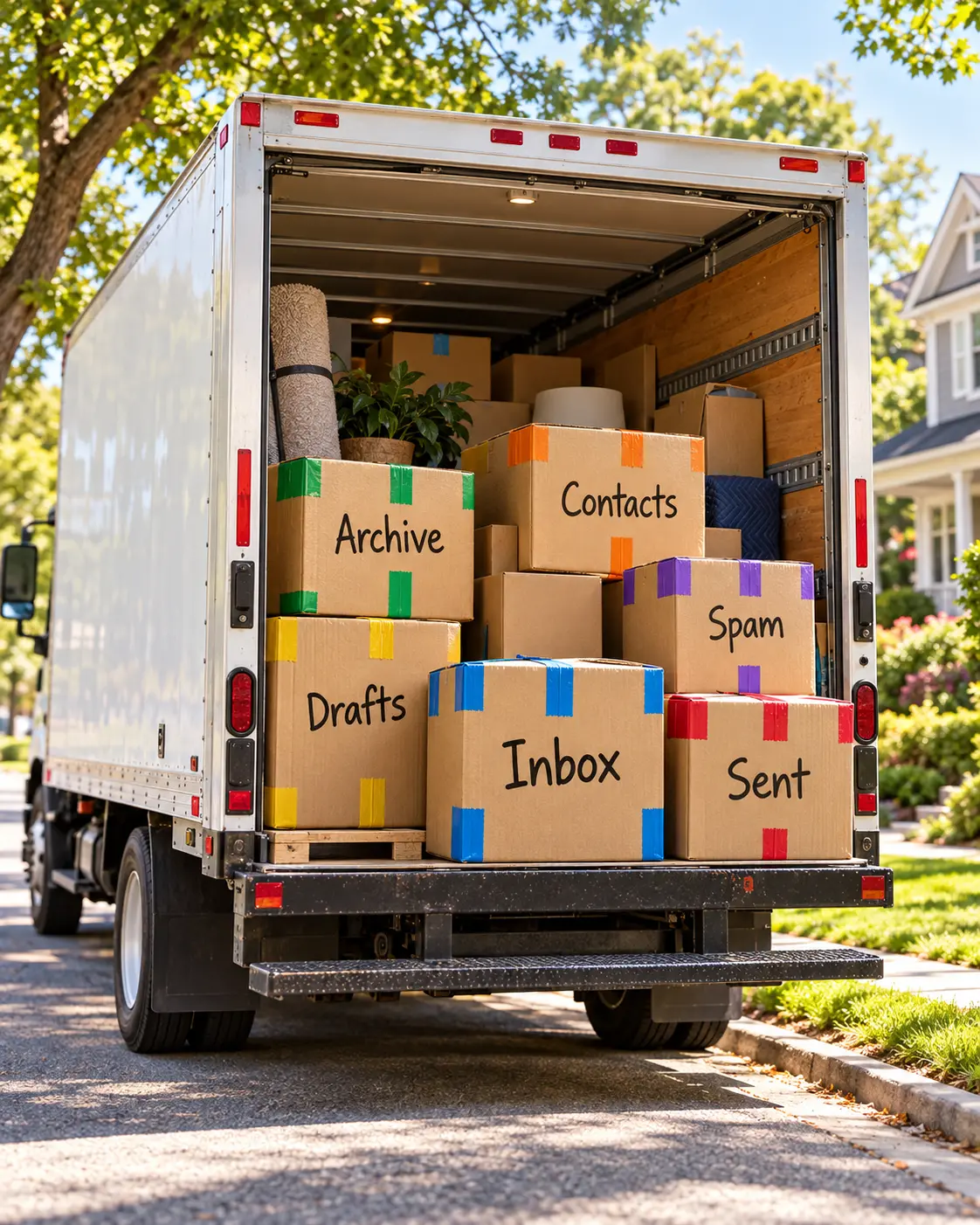 Nobody has ever needed to move the Spam box. Everybody does it anyway.
TL;DR
- Don't close your old account. Not now, maybe not for years.
- Set up the new account first and secure it: unique password, two-factor authentication, a recovery option.
- Forward the old address to the new one so nothing gets lost while you move.
- Export contacts and calendars, then import them.
- Decide what happens to your old mail: leave it and connect it, migrate it or archive it offline.
- Move your logins in order of importance. Recovery-critical accounts first, newsletters last (or never).
- Keep the old account alive. Providers delete inactive accounts, and an abandoned address can lock you out of everything still attached to it.
The Mail Is Easy. The Logins Are the Move.
Every account you've ever created remembers your email address. Many use it as your username. Most use it to reset your password. Some send your login codes there. That's the real inventory, and most people have a few hundred entries in it without knowing.
So switching isn't a single event. It's a migration with a long tail: a busy first week, a steady month of updates and a year of "oh right, that one."
The steps below follow that order.
Step 0: Don't Close Anything
The most expensive mistake is deleting the old account on day one. Everything still pointing at it goes into a void: password resets, receipts, that letter from the tax office.
Your old account stays open during the move and for a good while after. We'll get to how long.
Step 1: Set Up and Lock Down the New Account
Before you move anything in, secure the place.
- Use a unique password you don't use anywhere else, ideally generated by a password manager.
- Turn on two-factor authentication.
- Set up a recovery option you'll still have access to in five years.
This account is about to become the master key to your digital life. Treat it that way from day one.
Step 2: Forward the Old Address
Forwarding is your mail redirect. It catches everything people keep sending to the old address while you update them.
In Gmail, go to Settings → See all settings → Forwarding and POP/IMAP and add your new address. Gmail sends a verification link to the new address. Confirm it, then choose to forward a copy of incoming mail. Other providers have a similar setting.
Two details matter:
- Keep a copy in the old inbox. If forwarding ever hiccups, the original is still there.
- Spam isn't forwarded. Gmail forwards everything except spam, so check the old spam folder now and then. Legitimate mail lands there more often than you'd think.
Forwarding also doubles as your to-do list. Every forwarded message tells you someone still has the old address. Update them, and eventually the forwarded mail dries up.
Step 3: Move Contacts and Calendars
These are the easy wins.
- Contacts: export them from your old provider as a vCard (.vcf) or CSV file and import them into the new one. Spot-check a few afterward. Some systems keep only one home and one work address per contact, so extra addresses can quietly disappear.
- Calendars: export as an .ics file and import it. Recurring meetings and calendars shared with other people are worth rechecking by hand.
Step 4: Decide What Happens to Your Old Mail
You have three options, and mixing them is fine.
- Leave it and connect it. The old mail stays where it is and you view it from your new inbox. No migration needed, but the old provider keeps holding your history.
- Migrate it. Copy the folders into the new account. The most reliable DIY method: add both accounts to a desktop client like Thunderbird over IMAP and drag folders from old to new. Big archives take a while, so run it overnight and compare folder counts afterward.
- Archive it offline. Export everything and store it yourself. Gmail users can download their entire mailbox as an MBOX file through Google Takeout. Good for history you want to keep but rarely search.
Before you migrate twenty years of mail, check the size. A 40 GB archive won't fit into a 10 GB mailbox, however motivated you are. Delete the obvious junk first: newsletters, notifications, "your order has shipped."
Step 5: Move Your Logins (the Actual Work)
Now the long tail. First, find your accounts:
- Your password manager. If you use one, it's already your inventory.
- Your old inbox. Search for "welcome," "verify your email," "confirm your account" and "password reset." Every hit is an account.
- Your browser's saved passwords, if you've been living without a password manager. Consider this your sign to get one.
Then update them in this order:
- Recovery-critical: your password manager, your Apple, Google or Microsoft account, your phone carrier and anything tied to your identity. If one of these can only be recovered through the old address, it's a problem waiting to happen.
- Money and paperwork: banks, payment services, tax office, insurance, health, utilities and your domain registrar if you have one.
- Work and people: professional profiles, clients, anyone you invoice or who invoices you.
- Shopping and social: stores you actually use, social networks, subscriptions.
- Newsletters: don't migrate them. Unsubscribe from what you don't read and resubscribe to the few you miss. Moving is the best inbox cleanup you'll ever get.
Two traps while you're at it:
- "Sign in with Google" (or Apple, or Microsoft). These logins belong to that account, not to an email address. Change your address all you like: if you close that account, every login attached to it goes too. Switch those services to a regular login first, or keep the account.
- Recovery addresses. Many accounts keep a backup email for recovery. Update those too, including the recovery settings on your old account, so you can still get into it later.
Step 6: Tell the People Who Matter
Send a short note to the people and businesses you actually correspond with. Then set an auto-reply on the old account saying you've moved, and update your email signature, website and business cards.
Keep the auto-reply short. Everyone who writes to the old address sees it, spammers included.
Step 7: Keep the Old Account Alive
This is the step people skip, and it's the one that bites a year later.
Free providers delete accounts nobody uses. Google may delete a personal account after two years of inactivity, and a deleted Gmail address can't be used to create a new account. Microsoft closes accounts that haven't been signed into for two years.
If that happens before you've moved every login, anything still tied to the old address becomes very hard to recover. So:
- Sign in to the old account at least once a year. Put a reminder in your calendar.
- Keep forwarding and the auto-reply running.
- Keep its recovery options current.
When nothing important has arrived for a year, you can start thinking about closing it. Not before.
Mistakes That Hurt
- Closing the old account in week one.
- Migrating newsletters instead of unsubscribing.
- Forgetting the "Sign in with..." accounts.
- Forwarding without keeping a copy.
- Updating 200 online shops and forgetting the bank.
The Bigger Lesson
An email address feels like a contact detail. It's actually infrastructure. It sits underneath your accounts the way plumbing sits under a house: invisible until you try to move it.
If you never want to do this again, the real fix is an address on your own domain. Then you can change providers without changing the address. The trade-off is that the domain becomes your responsibility: renew it, secure it and never let it lapse. For most people, a carefully chosen address at a provider they plan to stay with is the simpler answer.
Where [@fuck.it] Lands
A few things make moving to [@fuck.it] easier:
- Connect your old account. In webmail, go to Settings › Mail › Add e-mail account and add your Gmail, Outlook.com or other IMAP account. Its folders appear in your sidebar. Connected mail stays on the old provider's servers and doesn't count against your [@fuck.it] storage.
- Import your contacts. The Address Book accepts vCard and CSV files.
- Use any mail client. IMAP, POP3 and SMTP are included, so the Thunderbird method above works as is.
- Plan for size. Mailboxes are 10 GB on CORE, 30 GB on EDGE and 100 GB on APEX. If your archive is bigger, migrate what matters and archive the rest offline.
- Lock it down. Two-factor authentication lives in Settings › Security.
- Choose your address carefully. One account, one address: it can't be changed later. Pick the one you'll still be happy to give out in ten years.
We don't offer custom domains. If owning your address on your own domain matters most to you, we're not the right fit, and that's fine.
Sources & further reading: Google: Automatically forward Gmail messages · Google: Inactive Google Account Policy · Microsoft: Account activity policy · OX App Suite: Importing contacts · [@fuck.it] FAQ
Related reads: Gmail Is Killing "Send As" for Other Email Accounts. Here Are Your Options. · Secure Email: The Buzzwords, the Bullshit, the Real Deal