Blog
Go backIMAP vs POP3: Which One Should You Actually Use?
Zero-Bullshit Guides · July 14th, 2026
Somewhere in every mail app's setup screen there's a question most people answer by guessing: IMAP or POP3?
If you guessed wrong, you probably found out later. Your phone showed emails your laptop had never heard of. You deleted something on one device and it lived on, undead, on another. Or you replaced your laptop and ten years of mail went to the recycling center with the old one.
Here's what the two actually do, which one you want and the one situation where the old one still earns its place.
TL;DR
- IMAP keeps your mail on the server and syncs it to every device. Read it on your phone, it's read on your laptop. Use it by default.
- POP3 downloads your mail to one device and usually deletes it from the server. Simple, offline, single-device.
- Neither one sends mail. That's SMTP's job, and you need it either way.
- Use POP3 only if you read mail on one computer, want your archive stored locally and are prepared to back it up yourself.
- Gmail's POP news is about Gmail fetching other accounts, not about your mail app. Apps can still connect to Gmail with either protocol.
The Post Office vs. the Filing Cabinet
The names give it away.
POP stands for Post Office Protocol, and it works like a post office box. You go in, empty the box and take everything home. What happens to the letters after that is your business. The post office neither knows nor cares.
IMAP, the Internet Message Access Protocol, is more like a filing cabinet that stays at the post office. You can read letters there, sort them into drawers, flag the important ones and leave everything in place. Come back through a different door with a different key and you'll find the same cabinet in the same state.
That's the whole difference. Everything else follows from where the mail lives.
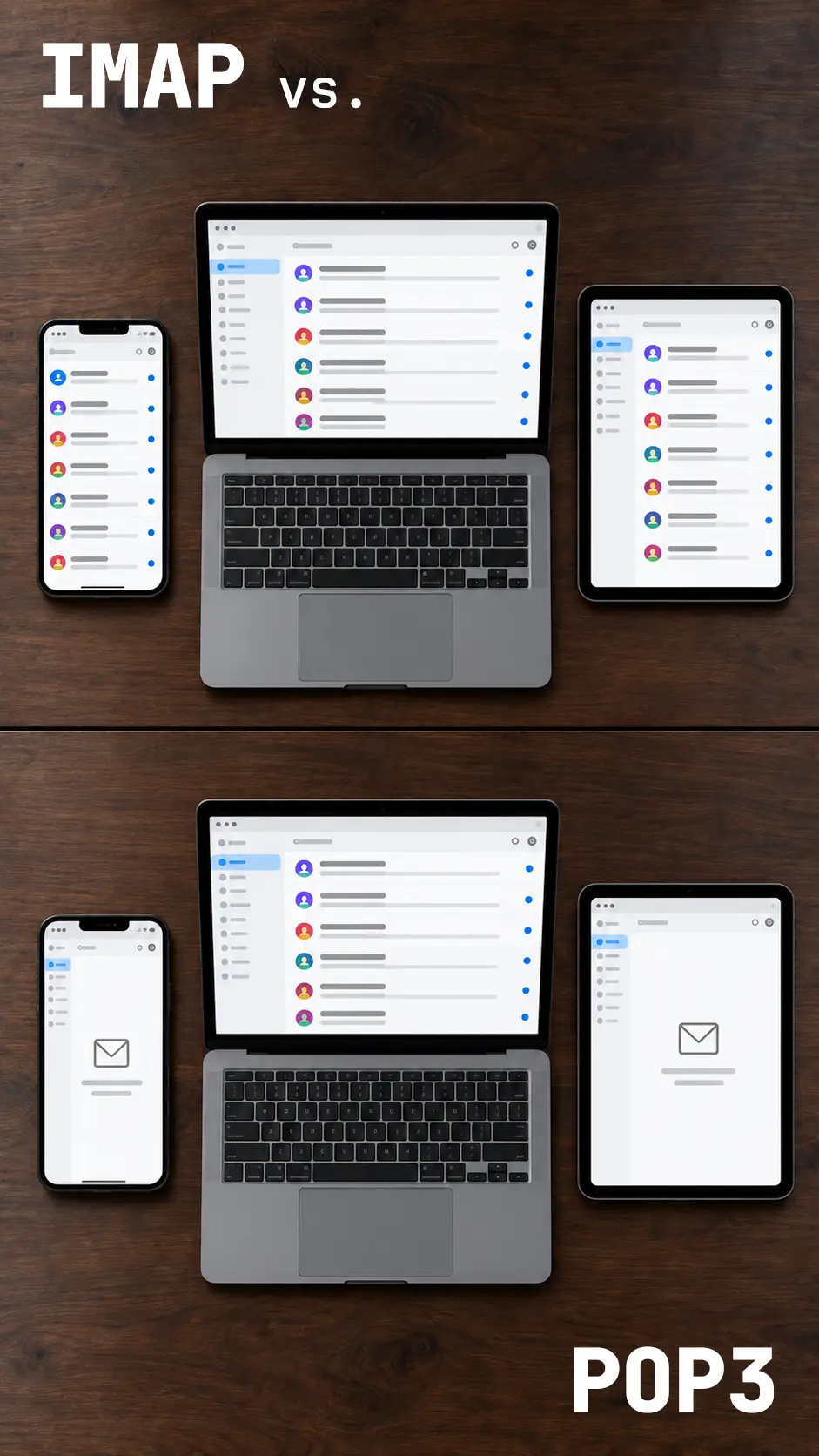 Same account, two protocols. One of these is why your phone thinks you have no email.
POP3: Download and Done
POP3 does one thing: it fetches the messages in your inbox and hands them to your mail app. It was built for download-and-delete, and the people who maintain the standard have said explicitly that's what it should stay.
In practice:
- It only sees your inbox. Folders on the server don't exist as far as POP3 is concerned.
- Nothing syncs back. Read, flagged, moved, deleted: all of that happens on your device only.
- "Leave a copy on the server" isn't sync. It helps, but your phone and laptop each download their own copy and keep their own separate opinions about it.
- Sent mail stays put. It lives on whichever device you sent it from.
The upside is simplicity. Your mail sits on your own disk, readable offline, independent of the provider.
IMAP: One Mailbox, Every Device
IMAP was designed in 1986 for exactly the thing POP3 doesn't do: working with a mailbox that stays on the server. The current version, IMAP4rev2, was published in 2021.
In practice:
- Everything stays in sync. Read status, flags, folders, deletions: change it on one device and every other device agrees.
- All your folders are there, including Sent, Drafts and Archive.
- New device, same mailbox. Sign in and your mail is there. Nothing to copy.
- Offline still works. Your app keeps a local copy for speed and offline reading, but the server holds the real thing.
The downside: you depend on the server. Your storage quota applies to everything you keep, and if the provider is down, you're reading whatever your device has stored.
Neither One Sends Mail
A common source of confusion: IMAP and POP3 only receive. Sending is handled by SMTP, a separate protocol with its own server settings.
Every mail app asks for both: an incoming server (IMAP or POP3) and an outgoing server (SMTP). If you can receive but not send, check the SMTP settings first.
So Which One?
Use IMAP if:
- You read mail on more than one device. That's almost everyone with a phone.
- You want folders, flags and read status to follow you.
- You don't want to lose your mail when a laptop dies.
POP3 still makes sense if:
- You read mail on exactly one computer and like it that way.
- You want your archive on your own disk rather than a provider's server.
- You're up against a storage limit and want the server emptied regularly.
There's a privacy argument for POP3 too: mail you've downloaded and deleted from the server isn't sitting there anymore, apart from whatever backups the provider keeps for a while. It's a fair point with a catch. Your computer now holds the only copy. If it's stolen, broken or unencrypted, that's on you. Encrypt the disk and back it up, or your privacy win turns into a data-loss plan.
Settings Cheat Sheet
Your provider lists its exact server names. The ports are usually standard:
- IMAP: port 993, SSL/TLS
- POP3: port 995, SSL/TLS
- SMTP: port 465 with SSL/TLS, or 587 with STARTTLS
Always pick an encrypted option. If your app offers "None" as a security setting, that's the one not to choose. Your password would travel in plain text.
Switching From POP3 to IMAP Without Losing Anything
If you've been on POP3 for years, your old mail probably lives only on your computer. Here's how to move it without an accident:
- Back up first. Copy your mail app's data folder or export your mailbox before you touch anything.
- Add the same address again as an IMAP account alongside the POP3 one. Don't remove the POP3 account yet.
- Drag your local folders into the IMAP account. That uploads them to the server. Big archives take a while.
- Check the server copy. Log in to webmail and confirm the folders and message counts match.
- Only then remove the POP3 account. In some apps, removing an account also deletes its locally stored mail. That's exactly why steps 1 and 4 come first.
About Gmail "Dropping POP"
You may have read that Gmail is dropping POP. That's about Gmail's own "Check mail from other accounts" feature, which used POP to pull mail from other providers into Gmail. It stopped taking new users after the first quarter of 2026 and ends completely in January 2027.
It doesn't affect mail apps connecting to Gmail. Google says third-party apps can still reach Gmail over POP or IMAP. POP3 as a protocol isn't going anywhere. It's just losing one of its bigger fans.
The full story is in our guide to Gmail's Send As changes.
Where [@fuck.it] Lands
Every [@fuck.it] account includes IMAP, POP3 and SMTP, so the choice is yours. We recommend IMAP: it keeps your phone, laptop and webmail in sync, so whatever you do in one place shows up everywhere else.
If you prefer POP3, that works too. Just remember that mail downloaded and deleted from the server won't be in your webmail anymore, and your device holds the only copy. Back it up.
Sources & further reading: RFC 9051: IMAP4rev2 · RFC 1939: POP3 · RFC 8314: Cleartext Considered Obsolete (TLS for email access) · Google: Changes to Gmailify & POP in Gmail · [@fuck.it] FAQ
Related reads: Gmail Is Killing "Send As" for Other Email Accounts. Here Are Your Options. · How to Change Email Providers Without Losing Your Digital Life